
Features
Card Scanner
Scan One Piece cards, review the suggested printing, check available prices, and save cards to a collection.


Step by step
Scan a small pile into the right collection
You have opened a pack and want to record its cards, including a second copy, without saving an uncertain printing or sending copies to the wrong collection.
Choose the card language and collection before scanning. Use Manual for one deliberate save at a time, review any printing choice, then compare the saved copies with the cards on your table.
Have two or three known cards ready, including a duplicate. This walkthrough follows the iOS AI scanner. The screenshots illustrate scanner and collection views; controls can differ by app version. Check your available scans before starting.
-
Choose the language and destination
Select EN or JP to match the card in your hand. Open the collection destination and choose where new scans should go. Scan history only keeps results in Recently Scanned without adding collection copies. Check the destination again if Haki remembers your previous choice.
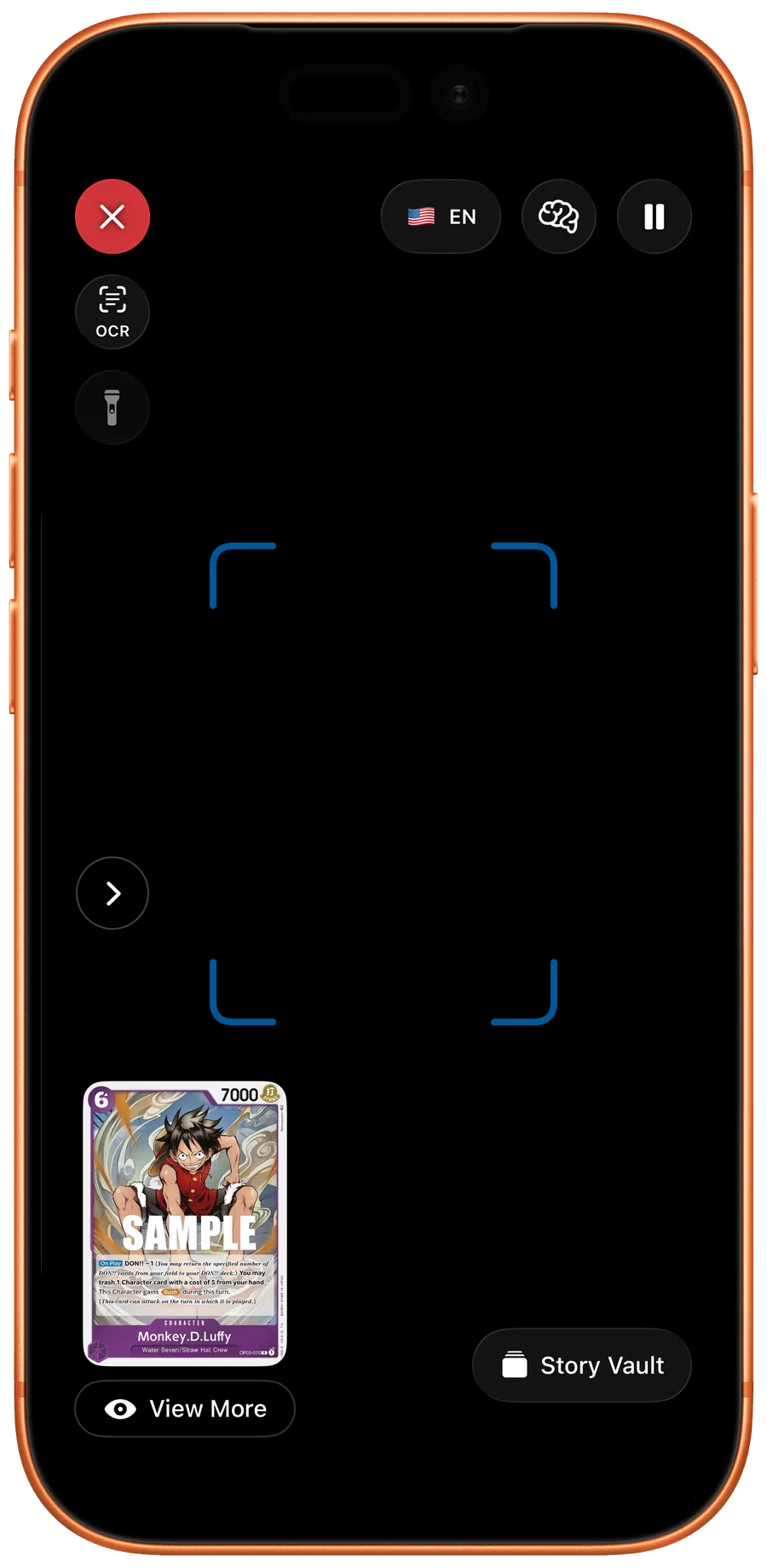
An English scanner view with a collection destination selected.iOS · English interface -
Switch to Manual and present one card
Choose Manual in the AI scanner. Keep one card flat in even light, reduce sleeve glare and wait for a candidate. Press the shutter once to save that card. Auto saves recognized cards without a shutter press, so use Manual while checking this small pile.
-
Resolve a printing choice before continuing
If Haki offers several printings, compare the card number, product, language and image, select the matching entry and press Use this printing. That choice is not shown for every card. If the result remains uncertain, leave it unresolved and use card search instead of choosing by price.
-
Add the physical duplicate deliberately
Place your second copy under the camera and make one deliberate Manual shutter press. In Auto, Add duplicate provides an intentional extra save when offered. The duplicate setting controls repeated recognition during scanning; it does not skip every card already in your collection. Check the saved quantity rather than repeatedly tapping.
-
Review the session and open the destination
Open Scanned Cards to inspect the session. Compare each result with your pile. Use Change printing when a same-artwork alternative is available, or Change Card for a different match. Open the destination collection and confirm the final printings, languages and copy counts.

Check the destination collection and the quantities saved there.iOS · English interface
Check the result
Each physical card has a confirmed matching entry, the duplicate adds exactly one intended copy, and you can show which collection received the cards. A history-only session has no collection copies until you save them to a collection.
What still needs checking
- Recognition suggests a catalog record. It does not authenticate the physical card, assess its condition or guarantee the correct finish.
- Free live scans have an allowance shown in the app; Pro and any available bonus scans affect access. Do not assume a fixed free quota or that duplicates are free scans.
- The steps and labels above describe the iOS AI scanner. Android controls can differ, and new promos may not yet have a matching catalog record.
What you can do
- Review the match
- Compare the suggested image, card code, language, and artwork before saving.
- Check prices
- Open the matched card to review available market prices and source dates.
- Save your cards
- Add confirmed cards and quantities to a collection.